
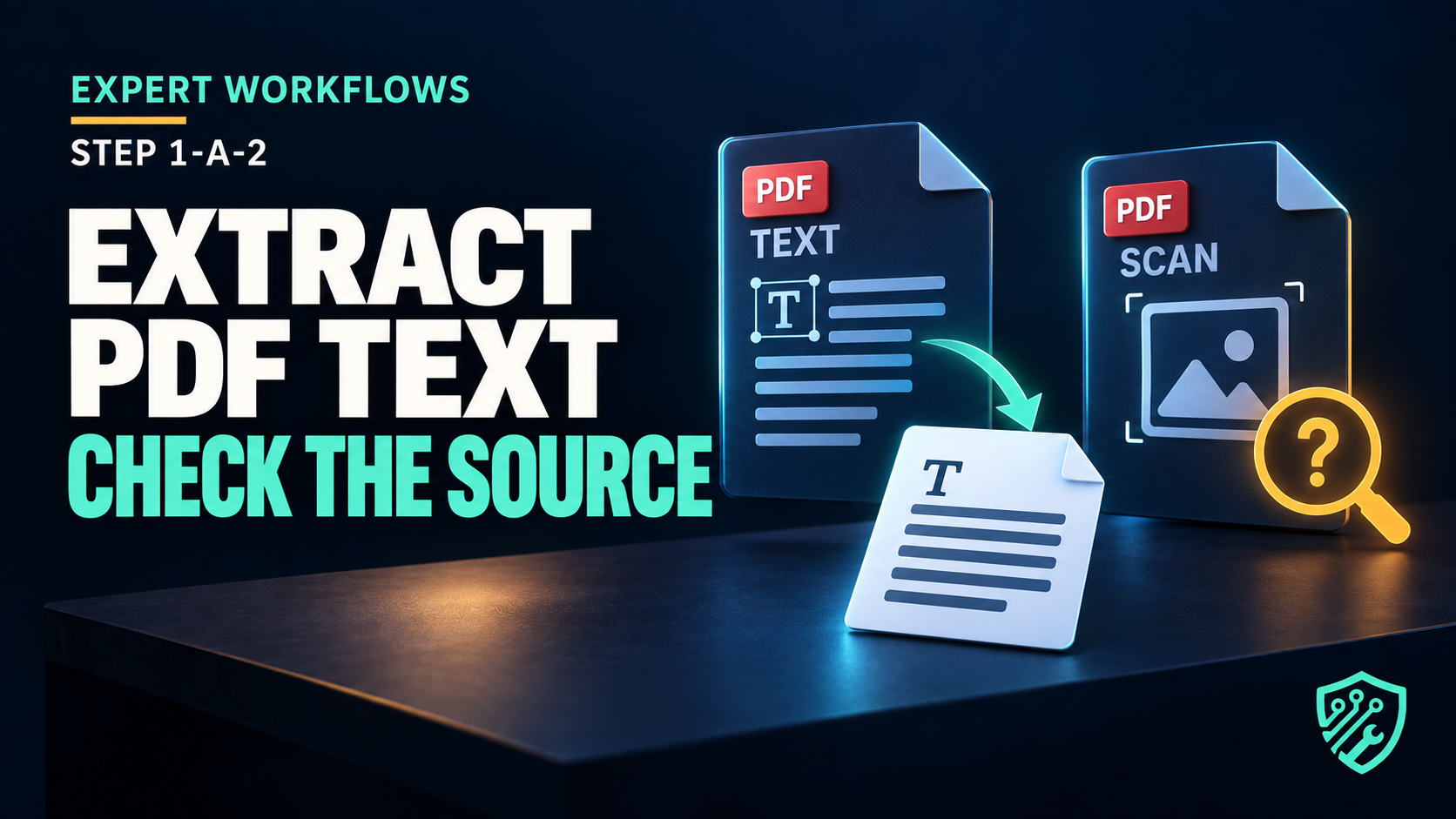
📌Expert Workflows · Step 1: AI PDF Summarizer · Edition A (Developer) · Part 2 of 4 (Extracting Text From Any PDF)
🎯 The Reason This Matters
Inpart 1you proved your machine can talk to an AI model. Now we get the text out of the PDF — and this is the part that surprises most developers. A PDF isn’t a document format so much as a set of drawing instructions — thePDF specification (ISO 32000)describes a page as positioned glyphs and graphics, not as a stream of readable words — and “get the text” ranges from one line of code to genuinely impossible depending on how the file was made. A text-based PDF stores the characters; a scanned PDF stores apictureof characters, with no text layer at all, which is why the same line of code returns a full document for one file and an empty string for another.
By the end of this post you’ll have a reusable extraction function, an inspector that flags some low-text or corrupted-extraction cases for review, and fixes for the two failures that will otherwise send you in circles: text that comes back empty, and text that comes back garbled.
Project context
Validation should precede summarisation: test both a text-based PDF and a scanned or image-only PDF so an empty extraction is treated as a limitation, not usable input.
🛠️ Before You Start
- Everything from part 1 (project folder,
.venv, working.env, verified API connection) pypdfinstalled (pip install pypdf)- Two test PDFs: one text-based (exported from a word processor), one scanned (a photo or scan of paper)
How to Use This Troubleshooting Tutorial
- 🔴 BEFORE shows an intentionally incomplete or flawed example so readers can reproduce and understand a representative problem.
- 🧠 CAUSE explains why the problem occurs.
- 🟢 AFTER presents the corrected implementation for this lesson.
- ✅ VERIFICATION explains how to confirm that the correction works.
📝 Step 1: The Extraction Function
We’ll usepypdf, whoseofficial documentationcovers the extraction edge cases in depth. Add this to a new file,pdf_reader.py:
from pathlib import Path
from pypdf import PdfReader

def extract_text(pdf_path: str) -> str:
    """Return all text from a PDF, page by page."""
    path = Path(pdf_path).expanduser().resolve()

    if not path.exists():
        raise FileNotFoundError(f"No PDF at: {path}")

    reader = PdfReader(str(path))
    pages = []

    for page in reader.pages:
        pages.append(page.extract_text() or "")

    return "\n\n".join(pages)

if __name__ == "__main__":
    text = extract_text("sample.pdf")
    print(f"characters extracted: {len(text)}")
    print(text[:500])
Two details worth noticing.page.extract_text()returnsNonefor pages with no extractable text, soor ""prevents aTypeErrorfrom taking down a 200-page run at page 137. And.expanduser().resolve()turns~/Documents/file.pdfand relative paths into one absolute path, so the error message tells you exactly where Python looked.
Run it:
python pdf_reader.py
On a text-based PDF you’ll see a character count and the first 500 characters. A single image-only page can producecharacters extracted: 0. Multiple empty pages still add separator newlines: the two-blank-page test below returned 2 raw characters but 0 stripped text characters.
📋 The Three PDF Types You’ll Meet
Every PDF you feed this tool falls into one of three buckets, and knowing which one you’re holding tells you immediately whether extraction will work — before you waste an AI call on empty text:
| PDF type | Whatextract_textreturns … |
What to do |
|---|---|---|
| Text-based (exported from software) … | Often extractable text; reading order and character mapping can still fail | Compare extracted text with the visible pages |
| Scanned (image of paper) | Empty or near-empty | Needs OCR (a separate step) before this tool works |
| Mixed / broken encoding | Garbled or partial text | Check the extraction, may need a different library |
Inspect input before an AI call. An empty or partial extraction can lead to an unsupported answer if a later step sends it to a model. The extractor shown here makes no AI request. Character counts flag missing text but do not establish correct reading order or faithful content.
Understand the symptom
The next result is intentional. Place a scanned or image-only PDF in the project folder as `sample.pdf`, then run:
python pdf_reader.py
If the output says `characters extracted: 0`, the tutorial is working as designed. This is not a crash: it demonstrates what happens when a PDF contains images but no usable text layer. We will diagnose and fix this result below.
⚠️ Troubleshooting — The PDF that extracted nothing
🔴 BEFORE
characters extracted: 0The shown extractor can finish without an exception on an empty page. It does not send text to AI. Passing that result into a later summarisation step would be a separate, avoidable risk.
🤔 Cause
The file is a scan: an image wrapped in a PDF container. A text extractor can correctly return zero characters because no searchable text layer exists. The workflow should stop, report the limitation, and route the document to an approved OCR process rather than asking a model to summarise missing text.
🟢 AFTER
Validate before you spend an API call:
MIN_CHARS_PER_PAGE = 50

def inspect_pdf(pdf_path: str) -> dict:
    path = Path(pdf_path).expanduser().resolve()
    reader = PdfReader(str(path))

    per_page = [len((p.extract_text() or "").strip()) for p in reader.pages]
    total = sum(per_page)
    empty_pages = [i + 1 for i, n in enumerate(per_page) if n < MIN_CHARS_PER_PAGE]

    return {
        "pages": len(per_page),
        "total_chars": total,
        "empty_pages": empty_pages,
        "likely_scanned": total == 0 or total < MIN_CHARS_PER_PAGE * len(per_page) / 2,
    }
Then refuse to continue on a file you can’t read:
info = inspect_pdf("sample.pdf")
if info["likely_scanned"] or info["empty_pages"]:
    raise SystemExit(
        f"This PDF may be scanned or may contain too little extractable text. "
        f"Inspect the file or run OCR before continuing "
        f"({info['total_chars']} chars across {info['pages']} pages)."
    )
For image-only scans, an OCR tool such as ocrmypdf can add a searchable text layer. This is a separate installation and processing step; inspect its output before using the same extractor:
ocrmypdf input_scanned.pdf output_with_text.pdfTeaching note: These are input-validation examples, not a report of a real model fabricating a summary. The local experiment below uses synthetic PDFs and no external AI service.
Install OCRmyPDF using its official instructions before trying the shell command. OCR is not part of the local experiment and does not guarantee correct extracted text.
📝 Step 2: Saving the Extracted Text
You’ll want the raw text on disk while developing, so you’re not re-parsing a large PDF on every run:
def save_text(text: str, out_path: str = "extracted.txt") -> None:
    Path(out_path).write_text(text, encoding="utf-8")
print(f"saved {len(text)} characters to {out_path}")Thatencoding="utf-8"is not optional, and the next Troubleshooting notes explains why.
⚠️ Troubleshooting — Question marks, broken glyphs, and a Windows crash
🔴 BEFORE
Two symptoms need different diagnoses. The following exception was reproduced locally with chr(0x1F600).encode("cp949"). It demonstrates an unrepresentable character, not a captured failure of every Windows console. The earlier Korean U+C548 example was incorrect: cp949 can encode it.
UnicodeEncodeError: 'cp949' codec can't encode character '\U0001f600' in position 0: illegal multibyte sequenceAnd in the extracted text itself, non-English characters arriving as?????or as visually scrambled glyphs.
🤔 Cause
These are two different problems that get lumped together as “encoding issues.”
The crash is anoutputproblem: Python produced perfectly valid Unicode, but the Windows console’s legacy code page can’t represent those characters. Nothing is wrong with your data — only with where you tried to display it.
The scrambled glyphs are aninputproblem: some PDFs embed fonts with a custom character map and noToUnicodetable. The file knows which shape todrawfor each code, but not which character that shapeis. Copy-pasting from the PDF in a viewer produces the same nonsense, which is the quickest way to confirm the file is at fault rather than your code.
🟢 AFTER
For the output problem — write to files with an explicit encoding, and force the console when you need it:
# Always explicit, never platform-dependent
Path("extracted.txt").write_text(text, encoding="utf-8")
For a Python process started afterward, use the command matching your shell. This setting primarily matters for redirected standard streams; modern Windows consoles may already use Unicode.
# Windows PowerShell
$env:PYTHONIOENCODING = "utf-8"

# Windows Command Prompt
set PYTHONIOENCODING=utf-8
For the input problem — detect it rather than silently summarizing nonsense:
def looks_garbled(text: str, sample: int = 2000) -> bool:
    """Rough check: lots of replacement/undefined characters in a sample."""
    chunk = text[:sample]
    if not chunk:
        return False
    bad = sum(1 for ch in chunk if ch in "\ufffd" or ord(ch) == 0)
    return bad / len(chunk) > 0.05
A True result flags replacement or null characters in the sampled text. A False result does not certify readability: wrong words and scrambled columns may contain neither marker. Inspect the source and extracted text. OCR may help some cases, but existing text layers can require different OCR options and the result still needs review.
Verification note: This controlled example represents a common PDF text-extraction failure. Use the inspection step to determine whether the PDF contains an extractable text layer before choosing an approved OCR process.
⚠️ Loose Ends Worth Tying
Extraction that “works on my test file” is the most common source of silent failures in document pipelines. Real-world PDFs include scans, mixed-language documents, multi-column layouts that extract in reading-order chaos, and files where half the pages have a text layer and half don’t. You are not writing a parser for one file; you’re writing a gate that decides whether a file is safe to summarize.
That’s whyinspect_pdf()matters more thanextract_text(). The extractor is ten lines anyone can copy. The validator is the part that keeps a fabricated summary of an empty document out of your output — and later, out of your users’ hands.
✅ What You Have Now
A resolved-path extraction function that survives empty pages, an inspector that reports page count, character totals, empty pages and a likely-scanned flag, UTF-8-safe file output, and a garbled-text detector. Your pipeline can now tell the difference between “this PDF has no text” and “this PDF has text I mangled” — a distinction that will matter in every document project you ever build.
💡 An Optional Upgrade
Runinspect_pdf()across a folder of PDFs and print a small report. You’ll learn more about real-world PDF quality in five minutes than in any article — and you’ll have built the first useful diagnostic tool of this course.
❓ Put It Into Practice
Extract text from both of your test files. Confirm the text-based one returns the content actually present and the scanned one triggers yourlikely_scannedguard rather than sailing through. If you don’t have a scan handy, photograph a printed page with your phone and save it as a PDF.
🔗 Next in This Series
[Step 1-A-3/4] Chunking, Token Limits & Surviving Timeouts, where we feed that extracted text to the model — and deal with the fact that a 40-page PDF doesn’t fit in one request, plus the retry logic that keeps a long run from dying at page 12.
Written and edited by G. Troy for Life Tech Hack, a beginner-friendly technology site. This tutorial explains how Python PDF text extraction behaves when a document contains a searchable text layer and when it does not. The error output and example results are included to make the debugging process easier to understand. They are teaching examples unless your own test produces the same result. Your output may differ depending on your operating system, Python packages, PDF file, and OCR tools. Always verify the result with your own file before relying on it.
Document handling boundary
Use public, owned, or authorised PDFs. Text extraction can scramble reading order or return nothing; OCR introduces additional errors and privacy considerations. Do not upload confidential, personal, copyrighted, legal, medical, or financial documents to an unapproved service.
Reproducible local verification — 12 September 2026
Download the PDF foundations scripts, synthetic PDFs, extracted text and actual results. Run python verify.py after installing the dependencies listed in README.md. Ten checks passed on Python 3.11.4 with pypdf 6.16.1, ReportLab 5.0.1, python-dotenv 1.0.1 and openai 2.38.0.
The setup checks reproduced the exact missing-settings message and path-anchored loading with a stubbed client. The PDF checks generated and extracted a real synthetic PDF, wrote UTF-8 output, examined two blank pages, and reproduced a real encoding failure. No live provider request, OCR or AI-quality test was performed.
SHA-256: c6f6194be951576aca40e8fd7e8997154e5b0b5efea5713e0252e58c77c540c6. The public download was checked against the local archive. connection_check.py is the completed AFTER setup script; save it as summarize.py to follow this series. pdf_reader.py is the runnable extraction companion for Part 2.
Actual observations and runnable path
- Searchable sample: 147 raw characters extracted, including the 17-day return rule.
- Two blank pages: 2 raw separator characters, 0 stripped text characters, both pages flagged.
- U+C548 encodes in cp949; U+1F600 raises the exception shown above.
For the complete command-line path, use the downloaded pdf_reader.py and run python pdf_reader.py sample.pdf --output extracted.txt. It inspects before saving and stops on low-text pages or detected garbling. This conservative stop can include legitimate title pages; inspect rather than treating the flag as proof of a scan. No OCR is included.