
![[Step 2-A-1/3] Your First Chrome Extension That Actually Loads — For Your Side Hustle (Reseller Edition)](https://lifetechhack.com/wp-content/uploads/2026/08/expert-720-extension.png)
📌Expert Workflows · Step 2: AI Chrome Extension · Edition A (Reseller) · Part 1 of 3
🎯 What You’re Actually Building Here
InStep 1some of us built a tool that summarizes PDFs from the command line. It worked — but let’s be honest about where it lived: in a black terminal window you had to open on purpose. That’s a fine place for a developer and an intimidating one for everyone else.
This series moves the tool into a browser popup. Parts 2 and 3 send text you select on an ordinary website to an AI service and return a draft rewrite, short caption, or title. You choose what to send and review the result before using it.
This first part has one job, and it’s the job that makes everything afterward feel possible: getting an extension you built to actually appear in Chrome. No AI yet, no clever features — just the satisfying moment when your own icon shows up in the toolbar and a window opens when you click it. That moment is where “I could never do this” quietly turns into “oh, I just did.”
Project context
The project goal is simple: bring the tool to the page instead of copying text into a separate app.
This published three-part reseller series is the complete path used here. Follow the next-part links in order.
🛠️ Prerequisites
- The Chrome browser; other Chromium browsers may have different menus and extension restrictions.
- A plain text editor — Notepad, TextEdit, or the freeVS Code, which makes this noticeably easier
- About 30 minutes
- No coding experience, no installation beyond the editor, no payment
This Part 1 example uses two local files, requests no permissions, and makes no network calls. Extensions can have powerful access when additional permissions and code are added, so inspect the files you load.
How to Use This Troubleshooting Tutorial
- 🔴 BEFORE shows an intentionally incomplete or flawed example so readers can reproduce and understand a representative problem.
- 🧠 CAUSE explains why the problem occurs.
- 🟢 AFTER presents the corrected implementation for this lesson.
- ✅ VERIFICATION explains how to confirm that the correction works.
📝 Step 1: What a Chrome Extension Actually Is
Before we build one, let’s dissolve the mystery, because the word “extension” sounds far more technical than the thing itself.
A Chrome extension isa folder containing a few small text files. One of those files is a kind of ID card that tells Chrome “here’s my name, here’s what I’m allowed to do, here’s the button to show.” That’s it. When you “install” your own extension, you’re really just pointing Chrome at that folder and saying “treat this as an extension.”
The famous extensions you already use — ad blockers, password managers, coupon finders — are the same thing, scaled up. Yours will start with two files and grow from there. If you can create a folder on your desktop and save a file into it, you already have every skill this part requires.
There’s one more idea worth holding onto: extensions are built from a small number of named parts, each with a job. Today we only need two of them.
- The manifest— the ID card. A file named exactly
manifest.jsonthat describes your extension to Chrome. - The popup— the little window that opens when you click your toolbar icon. A file named
popup.html.
Later parts add the pieces that read the page and call the AI. For now, ID card and window. That’s a complete, loadable extension.
📝 Step 2: Create the Folder and the ID Card
Make a new folder somewhere you’ll find it again — your Desktop is fine. Call itlisting-helper.
Inside it, create a file named exactlymanifest.json. The exact name matters — notmanifest.txt, notManifest.json, butmanifest.json. (This is the same hidden-extension trap from Step 1: if your editor insists on adding.txt, we fix that in the Troubleshooting notes below.)
Put this inside it:
{
  "manifest_version": 3,
  "name": "Listing Helper",
  "version": "1.0",
  "description": "Summarizes and rewrites text from any page.",
  "action": {
    "default_popup": "popup.html",
    "default_title": "Listing Helper"
  }
}
Let’s read that like a form you’re filling in, because that’s all it is.manifest_versionis which rulebook Chrome should use — 3 is the current one, and it’s not optional.name,version, anddescriptionare exactly what they sound like; they’re what you’ll see in your extensions list. Andactionis the important one:default_popuptells Chrome “when someone clicks my icon, open this file.” We’ll create that file next.
The curly braces and quotation marks aren’t decoration — this is a format called JSON, and it’s strict about them. One missing comma or one extra one and Chrome refuses the whole file. That strictness is annoying exactly once, which is coming up in the Troubleshooting notes.
📝 Step 3: Create the Window
In the same folder, createpopup.htmland paste:
<!DOCTYPE html>
<html>
  <body style="width: 300px; padding: 16px; font-family: sans-serif;">
    <h3>Listing Helper</h3>
    <p>If you can read this in a popup, your extension works.</p>
    <button>Do nothing (yet)</button>
  </body>
</html>
Don’t worry about understanding HTML line by line. The one thing to notice:width: 300pxsets how wide your popup window is, and everything between the<body>tags is what shows up inside it. You’ll customize this later; right now it just needs to exist so we can prove the extension loads.
Your folder now contains two files:manifest.jsonandpopup.html. That is a complete Chrome extension. Let’s install it.
📝 Step 4: Load It Into Chrome
This is the moment. Follow these exactly:
- Open Chrome and go to
chrome://extensions(type it into the address bar like a web address). - Find theDeveloper modetoggle in the top-right corner and switch iton. New buttons appear.
- ClickLoad unpacked.
- In the file picker, select your
listing-helperfolder— the folder itself, not a file inside it — and confirm.
If everything’s right, a card appears with “Listing Helper” and your description. Now look at your Chrome toolbar, near the top-right. Click the little puzzle-piece icon (that’s where new extensions hide), find Listing Helper, and click the pin icon so it stays visible. Then click your extension’s icon.
A small window opens saying “If you can read this in a popup, your extension works.”
Sit with that for a second. You built a Chrome extension. It’s in your browser right now.
⚠️ Troubleshooting — “Manifest file is missing or unreadable”
(Troubleshooting example — a common mistake reconstructed for learning, not a personal claim.)
🔴 BEFORE
ClickingLoad unpackedproduced a red error instead of a card:
Failed to load extension.
Manifest file is missing or unreadable.
Could not load manifest.
Educational error scenario: Chrome reports that the manifest is missing even though a file appears in the folder. The learner checks the selected folder, the real filename extension, and JSON syntax in that order.
🤔 Cause
Several mistakes can produce a similar message: selecting the file instead of its folder, saving manifest.json.txt, or creating invalid JSON. Verify the folder, show filename extensions, and validate the JSON before changing unrelated code.
First, check the selected folder. Chrome needs the folder containing the manifest and popup, rather than a file inside it.
Second, reveal filename extensions. A file saved as manifest.json.txt can look correct when Windows hides the final extension, but Chrome needs the exact name manifest.json.
Third, check JSON syntax. A missing or extra comma can make an existing manifest unreadable.
🟢 AFTER
Work through these in order:
1. Select the folder, not a file.When the picker opens, click yourlisting-helperfolder once to highlight it, then confirm — don’t open it and pick something inside.
2. Make file extensions visible and check the real name.On Windows: File Explorer → View → tick “File name extensions.” On Mac: Finder → Settings → Advanced → “Show all filename extensions.” Now look at your file. If it saysmanifest.json.txt, rename it tomanifest.jsonexactly.
3. Check the JSON for a stray comma.The most common typo is a comma after thelastitem inside the braces. Paste your file into a free “JSON validator” (search that phrase) and it’ll point at the exact character that’s wrong. This is a habit worth keeping — a local editor can highlight JSON syntax errors without uploading your file.
After you fix a file, click therefresh iconon your extension’s card inchrome://extensionsrather than removing and re-adding it. That reloads your changes instantly, which you’ll be doing constantly in parts 2 and 3.
Teaching takeaway: Confirm the actual filename and extension rather than relying on how the file browser displays it. This is a fictional learner scenario, not a personal anecdote.
⚠️ What Still Needs Doing
You have an extension that loads and opens a window — the hardest psychological step, now behind you. Two honest expectations before part 2, so the next stage feels like progress rather than a letdown.
Right now it does nothing, and that’s correct.The button is deliberately inert. It’s tempting to feel like you haven’t really built anything until it’s useful, but “loads reliably and opens a window” is the foundation every real feature sits on. Skipping straight to the AI is how people end up unable to tell whether a broken result is the extension failing to load, the page-reading failing, or the AI call failing — three problems at once with no way to isolate them. You built the base first on purpose.
At this stage the example contains no network request. It remains local unless other editor, sync, backup, or browser features transmit the folder.The two example files contain no code that sends data or invokes a paid service. That changes in part 2 when we connect to an AI service, and that’s exactly where we’ll slow down and handle it carefully — because the moment your tool starts sending page text to an outside company, you need to know what you’re sending and where. The reasoning behind that caution is the same one laid out inAI Hallucination and Ethics, and it matters as much for a reseller as for anyone.
✅ What You Have Now
A real, installed Chrome extension with your name on it, living in your toolbar and opening a popup window when clicked. You understand what the two core files do — the manifest that introduces your extension to Chrome, and the popup that appears when you click. And you’ve met the error that catches nearly every first-timer, along with the “select the folder, check the real filename, validate the JSON” routine that clears it. For the authoritative details, seeChrome extensions documentation.
Two files’ worth of understanding, and a genuine “I built that” you can show someone tonight.
💡 Go One Level Deeper
Change thenamein your manifest to something that’s yours — “the example user’s Listing Helper” — and edit the text insidepopup.htmlto a greeting you like. Then click the refresh icon on your extension card and open the popup again. Watching your own words appear because you changed a file is a small thing that makes the whole idea click: this isyoursto shape, not a fixed app you’re borrowing.
❓ Put It Into Practice
Load the extension, then deliberately break it: add a comma after the last line inside yourmanifest.jsonand hit refresh. Read the error Chrome gives you, then remove the comma and watch it recover. Breaking it on purpose, safely, is how you stop being afraid of the red text — because now you’ve caused it and fixed it yourself.
🔗 Next in This Series
[Step 2-A-2/3] Making It Read the Page and Talk to AI adds selected-text capture and an external AI request. Normal website text is supported; browser settings and other restricted pages are excluded. You will configure the provider and learn the limits of local key storage, which is not an encrypted secrets vault.
Extension safety boundary
Load unpacked extensions only from code you understand and trust. Review requested permissions, keep the folder private, use a dedicated browser profile if appropriate, and remove the extension after testing. Part 1 makes no external request; later parts change that risk profile.
Verified Build Evidence
This Part 1 project was reproduced and checked on 30 August 2026 using Windows 10, Google Chrome 152.0.7977.65, and Windows PowerShell 5.1. The downloadable package contains the same Manifest V3 files used for the checks. It contains no API key, account data, page content, or network request.
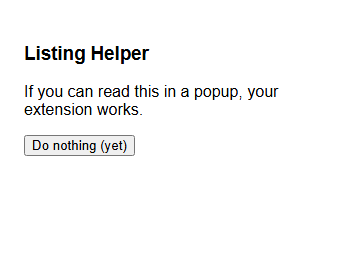
popup.html. Part 1 intentionally provides the extension shell only; the button has no action yet.Reproduction input and observed output
Input: Chrome rendered the included popup.html at a 360 × 260 viewport.
Observed output: the heading “Listing Helper,” the message “If you can read this in a popup, your extension works,” and the button “Do nothing (yet).”
Automated verification results
| Check | Result | Verified condition |
|---|---|---|
| Manifest JSON syntax | PASS | manifest.json parsed without an exception. |
| Manifest V3 declaration | PASS | manifest_version equals 3. |
| Popup linkage | PASS | action.default_popup points to popup.html. |
| Popup file | PASS | The declared file exists beside the manifest. |
| Visible heading | PASS | The popup contains the expected “Listing Helper” heading. |
| API-key scan | PASS | No OpenAI-style secret pattern was found. |
| Network-code scan | PASS | No fetch, XMLHttpRequest, or WebSocket call exists in Part 1. |
Download the verified Part 1 files (ZIP)
SHA-256: CC24EF4DD448FD4965BFE9B2090E24668C67E38FC2275C777BDBC41D76B9B991
Verification boundary: these checks validate the tutorial files, manifest linkage, rendered popup, and the stated no-network boundary for Part 1. Loading the unpacked folder through chrome://extensions is still a manual Chrome step. This evidence does not claim that the AI functionality introduced in later parts is present.